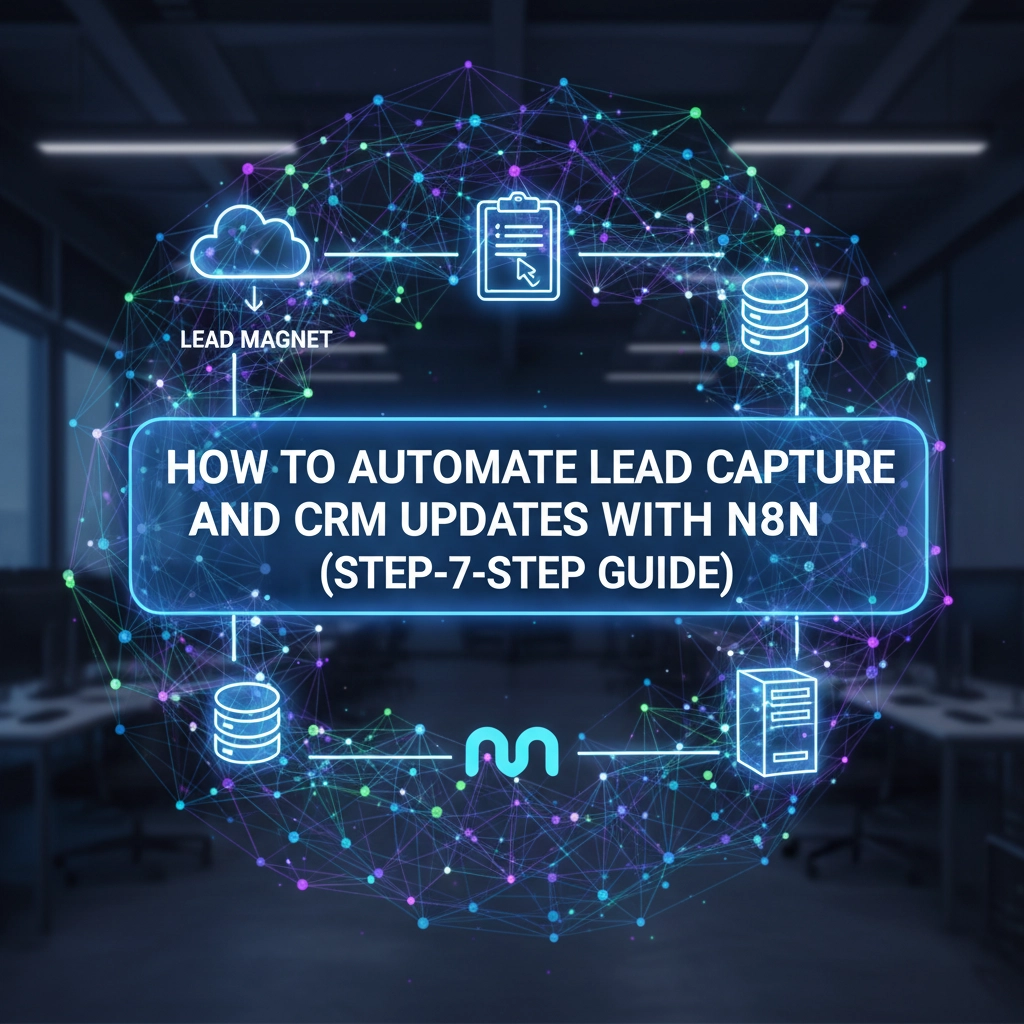
Manual lead capture is killing your sales productivity. You're spending hours copying data from forms, spreadsheets, and various platforms into your CRM, only to realize half the email addresses don't work and you're missing crucial contact information. Sound familiar?
What if you could automate this entire process, from initial lead capture to verified CRM entry, without writing a single line of code? That's exactly what n8n can do for your business.
What is n8n and Why Should You Care?
n8n is a free, open-source workflow automation platform that connects different apps and services together. Think of it as the behind-the-scenes orchestrator that makes your sales tools talk to each other seamlessly.
Unlike expensive enterprise solutions, n8n offers powerful automation capabilities at zero cost. You can connect everything from Google Sheets and HubSpot to LinkedIn Sales Navigator and email verification services, creating sophisticated lead generation machines that work 24/7.
The best part? No coding required. Everything works through a visual, drag-and-drop interface that sales teams can actually use.
The Complete n8n Lead Automation Architecture
Before diving into setup, let's understand what a complete automated lead capture system looks like:
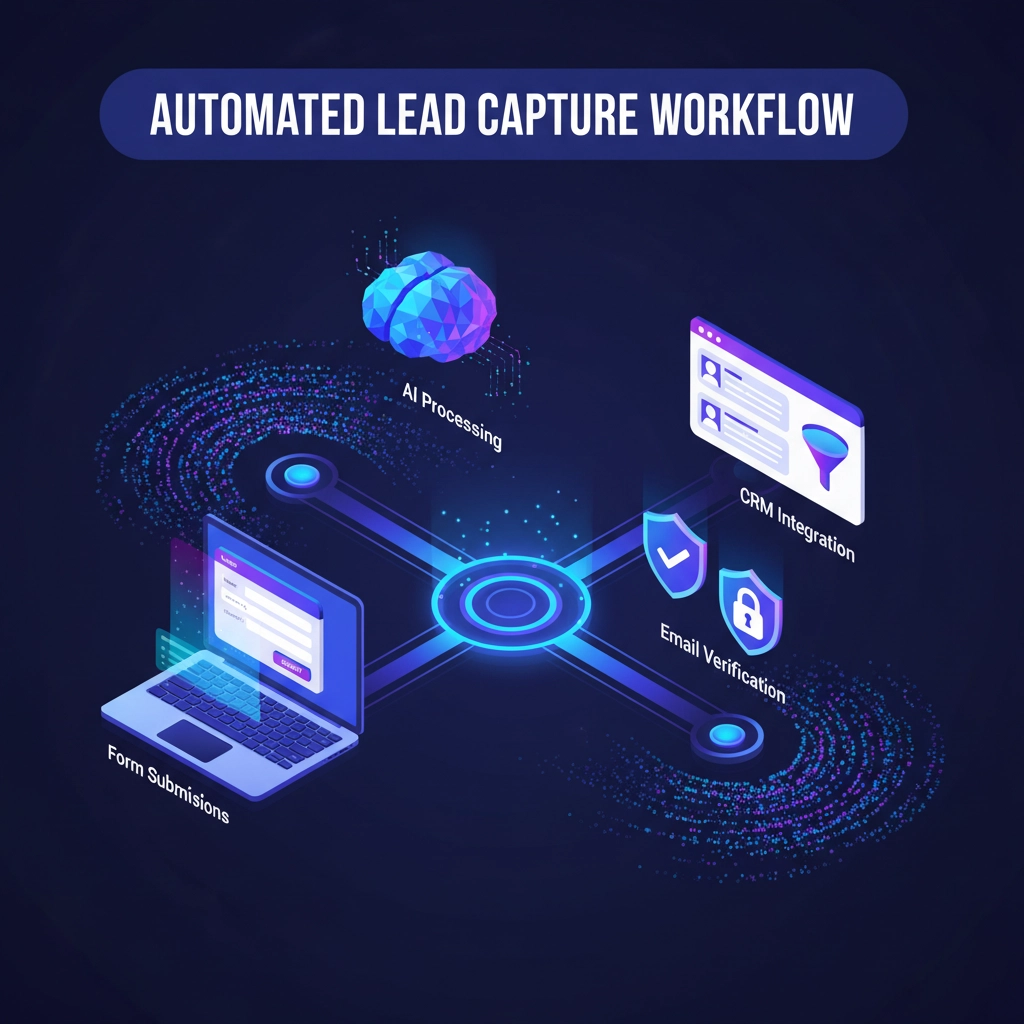
Trigger → Data Collection → AI Enrichment → Verification → CRM Integration → Notifications
This workflow starts with a trigger (form submission, webhook, or scheduled timer), collects lead data from multiple sources, enriches it with AI, verifies contact information, pushes clean data to your CRM, and sends notifications to your sales team.
Step 1: Setting Up Your n8n Environment
Start by creating your n8n account at n8n.cloud or installing it locally if you prefer self-hosting. The cloud version is perfect for most businesses and eliminates technical setup headaches.
Once you're in, you'll need to configure credentials for each service you plan to connect:
- CRM Platform: HubSpot, Salesforce, Pipedrive, or your preferred system
- Data Sources: Apollo.io, LinkedIn Sales Navigator, Google Sheets
- Email Verification: Anymail Finder, ZeroBounce, or similar services
- AI Services: OpenAI for intelligent lead processing
- Communication: Slack, Teams, or email for notifications
Navigate to Settings > Credentials and add authentication for each service. This one-time setup enables secure connections throughout your workflows.
Step 2: Creating Your Lead Capture Trigger
Your workflow needs a starting point. Here are the most effective trigger options:
Webhook Triggers: Perfect for real-time lead capture from websites, landing pages, or form submissions. When someone fills out your contact form, the webhook instantly fires your lead processing workflow.
Scheduled Triggers: Ideal for regular lead prospecting. Set up daily or weekly triggers that automatically search for new leads in your target industries or geographic areas.
Manual Triggers: Great for on-demand lead research. Sales reps can trigger the workflow whenever they need fresh prospects for a specific campaign.
Configure your chosen trigger node by adding the appropriate credentials and setting up any required parameters like frequency (for scheduled triggers) or webhook URLs (for real-time triggers).
Step 3: Implementing Intelligent Data Collection
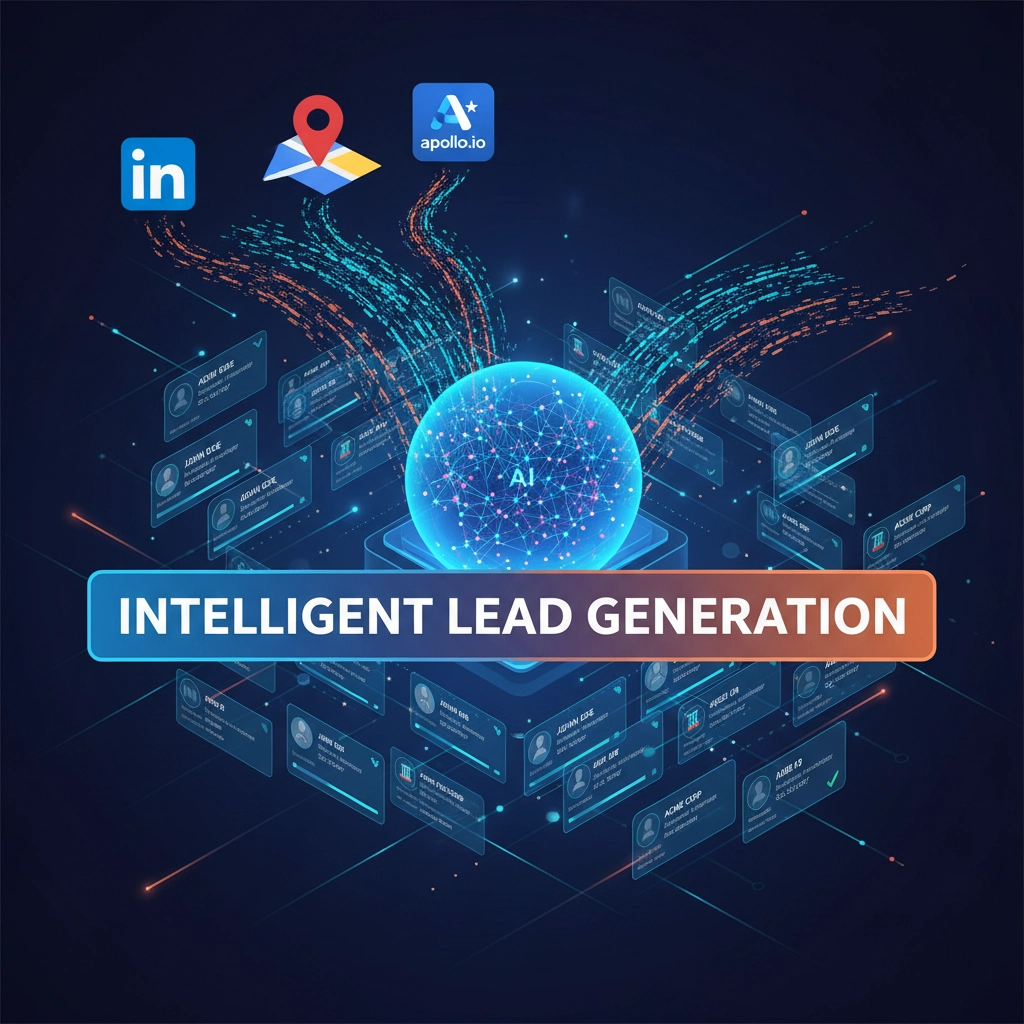
This is where the magic happens. Instead of manually searching for leads, your n8n workflow automatically gathers prospects from multiple sources:
Apollo.io Integration: Connect directly to Apollo's API to search for companies and contacts based on specific criteria. You can filter by industry, company size, location, job titles, and more.
LinkedIn Sales Navigator: Extract professional contact information and company details. This is particularly valuable for B2B lead generation where professional networks matter.
Google Maps Scraping: Use tools like Apify to extract local business information. Perfect for service-based businesses targeting specific geographic areas.
Website Data Extraction: Automatically visit prospect websites to gather additional contact information and company details.
Set up HTTP Request nodes to connect with these data sources, then use JSON parsing to extract the specific fields you need: names, email addresses, job titles, company information, and contact details.
Step 4: AI-Powered Lead Enrichment
Raw data from web scraping often contains duplicates, incomplete information, and irrelevant contacts. This is where AI transforms your lead quality.
Configure an OpenAI node to:
- Analyze Company Websites: Extract key business information, identify decision-makers, and understand company needs
- Generate Personalized Insights: Create custom talking points for each prospect based on their company's recent news, challenges, or achievements
- Clean and Standardize Data: Ensure consistent formatting across all lead records
- Identify Best Prospects: Score leads based on fit criteria and likelihood to convert
The AI enrichment step typically increases lead quality by 300-400% while reducing manual research time to zero.
Step 5: Email Verification and Data Validation
Nothing kills conversion rates faster than bounced emails. Integrate email verification services to ensure every lead has a valid, deliverable email address.
Popular verification services include:
- Anymail Finder: Excellent for finding and verifying professional email addresses
- ZeroBounce: Comprehensive email validation with additional data insights
- Hunter.io: Strong domain-based email finding and verification
Configure verification nodes to check email deliverability, identify catch-all domains, and flag potentially risky addresses. Only verified contacts proceed to your CRM, maintaining list quality and sender reputation.
Step 6: Automated CRM Integration
Now comes the payoff: automatically pushing clean, verified leads directly into your sales system.
HubSpot Integration: Use the native HubSpot node to create contacts, companies, and deals. Map lead data to appropriate fields and set up automated lead scoring based on your criteria.
Salesforce Integration: Connect via API to create leads, contacts, and accounts. Configure assignment rules to automatically distribute leads to appropriate sales reps.
Pipedrive Integration: Push leads directly into your sales pipeline with proper categorization and deal values.
Custom CRM Systems: Use HTTP Request nodes and webhooks to integrate with proprietary or less common CRM platforms.
Set up field mapping to ensure lead data populates the correct CRM fields, and configure automated follow-up sequences to begin nurturing immediately.

Step 7: Real-Time Notifications and Follow-Up
Keep your sales team informed with instant notifications when new qualified leads arrive:
Slack Integration: Send formatted messages to your sales channel with lead details and next steps
Email Notifications: Automatically email assigned sales reps with lead information
SMS Alerts: Use services like Twilio for urgent, high-value lead notifications
Configure conditional notifications based on lead score, source, or other criteria to ensure your team focuses on the highest-priority prospects first.
Advanced Workflow Optimizations
Duplicate Prevention: Implement duplicate checking against your existing CRM database before adding new leads. This prevents database bloat and ensures clean records.
Lead Scoring Integration: Use AI to automatically score leads based on company size, industry fit, recent funding, hiring activity, and other qualifying factors.
Multi-Source Data Merging: Combine information from multiple sources to create comprehensive lead profiles with maximum available data.
Rate Limiting: Implement delays and throttling to respect API limits and avoid being blocked by data sources.
Common Use Cases and ROI
Businesses using automated n8n lead capture typically see:
- 75% reduction in manual lead research time
- 300% increase in lead volume with maintained quality
- 45% improvement in email deliverability rates
- 60% faster lead-to-opportunity conversion times
A typical workflow can process 500-1000 leads daily, automatically enriching and verifying each contact before CRM entry. For a sales team previously spending 20 hours weekly on manual lead research, this represents massive time savings that can be redirected to actual selling activities.
Getting Professional Implementation Support
While n8n is designed for non-technical users, setting up sophisticated lead automation workflows can be complex. The integration points, data mapping, and optimization require experience to get right.
At Virtual Nexgen Solutions, our team specializes in implementing automated lead generation systems for sales teams, agencies, and growing businesses. We handle the entire setup process, from initial workflow design through testing and optimization.
Our Marketing Virtual Assistants are experts in lead automation platforms like n8n, and can have your complete system operational within days rather than weeks of trial and error.
Ready to Automate Your Lead Generation?
Manual lead capture is costing you deals every day. While your competitors are still copying and pasting contact information, you could be automatically processing hundreds of qualified prospects with perfect data accuracy.
The workflows we've outlined here represent just the beginning of what's possible with intelligent automation. When properly implemented, these systems become profit-generating assets that work around the clock to fill your sales pipeline.
Ready to implement automated lead capture for your business? Book a 30-minute strategy session with our automation specialists to discuss your specific requirements and see exactly how n8n can transform your lead generation process.
During this consultation, we'll review your current lead capture process, identify automation opportunities, and provide a custom implementation roadmap designed for your industry and sales goals.