Managing bookkeeping and financial reports manually is eating up valuable time that could be spent growing your business. If you're a small business owner or bookkeeper juggling multiple QuickBooks accounts, endless data entry, and repetitive reporting tasks, automation is your ticket to freedom.
n8n's QuickBooks integration transforms how you handle financial workflows by connecting your accounting software with hundreds of other business applications. This powerful combination eliminates manual data entry, reduces human error, and creates seamless automation that works 24/7.
Why QuickBooks Automation Matters for Your Business
Before diving into the technical setup, let's address the elephant in the room: time. The average small business owner spends 40+ hours monthly on bookkeeping tasks. That's an entire work week dedicated to data entry, invoice creation, and financial reporting instead of focusing on revenue-generating activities.
QuickBooks automation through n8n addresses common pain points:
- Duplicate data entry across multiple platforms
- Delayed invoice processing affecting cash flow
- Manual expense tracking leading to missed deductions
- Time-consuming financial reports for decision-making
- Human errors in financial calculations
Setting Up Your n8n and QuickBooks Integration
Authentication Configuration
Getting started requires OAuth 2.0 authentication between n8n and QuickBooks Online. This secure connection ensures your financial data remains protected while enabling seamless automation.
First, visit developer.intuit.com and create a QuickBooks Developer Account. In the App Dashboard, create a new application selecting the 'Accounting' scope. This generates three critical credentials:
- Client ID
- Client secret
- OAuth redirect URI

In your n8n workspace, navigate to the credentials section and create a new QuickBooks Online credential. Select OAuth 2.0 as your authentication method, then input your developer credentials. Choose between production or sandbox environments – use sandbox for testing workflows before deploying to live financial data.
Supported Financial Operations
n8n provides comprehensive QuickBooks functionality covering all major bookkeeping needs:
Core Financial Records Management:
- Create, update, delete, and retrieve bills, invoices, and estimates
- Process payments and handle payment voids
- Manage purchase orders and track expenses
Customer and Vendor Operations:
- Complete customer lifecycle management
- Vendor record creation and updates
- Employee and contractor information handling
Advanced Financial Features:
- Transaction reporting and analytics
- Inventory item management
- Direct invoice and estimate delivery to clients
Real-World Automation Scenarios
Automated Invoice Creation and Processing
Imagine this workflow: A customer completes a purchase on your e-commerce platform. Within seconds, n8n automatically creates a QuickBooks invoice, sends it to the customer, updates your CRM, and logs the transaction in your Google Sheets dashboard.
This automation eliminates the traditional process of manually entering order details, calculating taxes, creating invoices, and sending follow-ups. The entire sequence happens automatically, reducing processing time from 15 minutes to 15 seconds.
Expense Tracking and Categorization
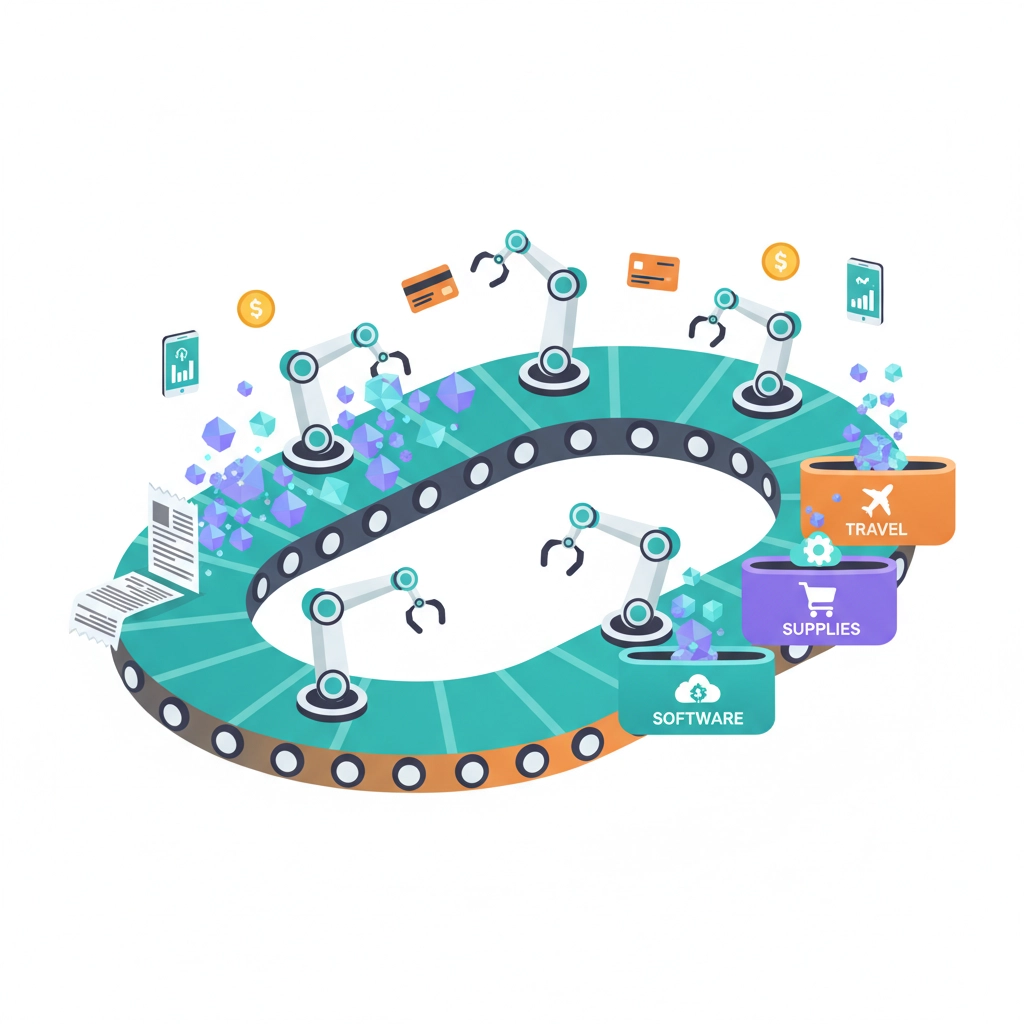
For businesses managing multiple expense sources, n8n can monitor email receipts, extract expense details, categorize transactions, and create QuickBooks expense entries automatically. Connect your business credit card statements, receipt scanning apps, and bank feeds for comprehensive expense automation.
Financial Reporting Automation
Monthly financial reports no longer require hours of data compilation. Set up workflows that automatically generate profit and loss statements, cash flow reports, and custom analytics dashboards. These reports can be automatically distributed to stakeholders via email or posted to shared drives.
Building Your First Automation Workflow
Step 1: Define Your Trigger
Start by identifying what initiates your workflow. Common triggers include:
- New entries in Google Sheets or Airtable
- Incoming emails with specific criteria
- Webhook notifications from other applications
- Scheduled time intervals for recurring tasks
Step 2: Configure Data Processing
Map data fields between your trigger source and QuickBooks requirements. For invoice creation, this includes customer information, line items, tax calculations, and payment terms. n8n's visual interface makes field mapping intuitive – simply drag connections between data points.
Step 3: Set Up QuickBooks Operations
Add the QuickBooks Online node to your workflow and select your desired operation. Whether creating invoices, updating customer records, or generating reports, configure the specific parameters for each action.

Step 4: Add Error Handling and Notifications
Professional automation includes error handling and status notifications. Configure workflows to handle missing data, duplicate entries, and API connection issues. Set up Slack or email notifications to alert you when workflows complete successfully or encounter problems.
Advanced Integration Possibilities
Multi-Platform Synchronization
Beyond basic QuickBooks operations, n8n enables sophisticated multi-platform synchronization. Connect QuickBooks with:
- CRM systems for automatic customer data updates
- E-commerce platforms for real-time sales tracking
- Banking applications for automated reconciliation
- Project management tools for time tracking and billing
AI-Powered Financial Analytics
Integrate AI services like OpenAI or Google's machine learning APIs to add intelligence to your financial workflows. Automatically categorize expenses, predict cash flow trends, or generate insights from financial data patterns.
ROI and Business Impact
Businesses implementing QuickBooks automation typically see immediate returns:
Time Savings: 70-80% reduction in manual bookkeeping tasks
Accuracy Improvement: 95%+ decrease in data entry errors
Cash Flow Enhancement: Faster invoice processing improves payment collection
Scalability: Handle 10x more transactions without additional staff
For a business processing 100 invoices monthly, automation saves approximately 20 hours of manual work valued at $400-600 in labor costs.
Getting Professional Implementation Support
While n8n provides powerful automation capabilities, implementing complex financial workflows requires expertise in both accounting principles and automation best practices. Working with experienced automation specialists ensures your workflows are configured correctly, secure, and scalable.
Virtual Nexgen Solutions specializes in helping businesses implement sophisticated automation solutions that transform operations. Our team understands both the technical aspects of n8n integration and the financial compliance requirements crucial for bookkeeping automation.
Whether you're looking to automate basic invoice processing or create complex multi-system financial workflows, professional guidance accelerates implementation and ensures optimal results. Book a 30-minute consultation to discuss your specific automation needs and discover how QuickBooks integration can transform your financial processes.

Security and Compliance Considerations
Financial data automation requires robust security measures. n8n's OAuth 2.0 integration with QuickBooks ensures encrypted data transmission and secure API access. However, implementing proper access controls, audit trails, and backup procedures requires careful planning.
Consider data retention policies, user permission structures, and compliance requirements specific to your industry. Many businesses benefit from professional security audits when implementing financial automation to ensure regulatory compliance.
Next Steps for Implementation
Start your QuickBooks automation journey with simple workflows before progressing to complex integrations. Begin with basic invoice creation or expense tracking, then expand to comprehensive financial reporting and multi-platform synchronization as your confidence grows.
Remember that successful automation requires ongoing monitoring and optimization. Regular workflow reviews ensure your automation continues meeting business needs as your company grows and evolves.
The investment in QuickBooks automation pays dividends in time savings, accuracy improvements, and enhanced financial visibility. With the right implementation strategy and professional guidance, your business can achieve significant operational improvements while maintaining the financial accuracy crucial for informed decision-making.