E-commerce businesses lose an average of 23 hours per week on manual order processing tasks. From order confirmations to inventory updates and shipping notifications, these repetitive processes drain valuable time that could be spent on growth and customer acquisition. In 2026, smart e-commerce operators are turning to n8n automation to eliminate these bottlenecks entirely.
This comprehensive guide walks you through building a complete order processing workflow using n8n that automatically handles everything from order receipt to fulfillment notification. You'll learn to create a system that processes orders 24/7 without human intervention while maintaining accuracy and customer satisfaction.
Why E-commerce Businesses Need Order Processing Automation
Manual order processing creates multiple pain points that compound as your business scales. Order entry errors cost retailers an average of $40 per mistake, while delayed order confirmations increase customer service inquiries by 35%. Staff spend countless hours copying order information between systems, updating inventory counts, and sending routine notifications.
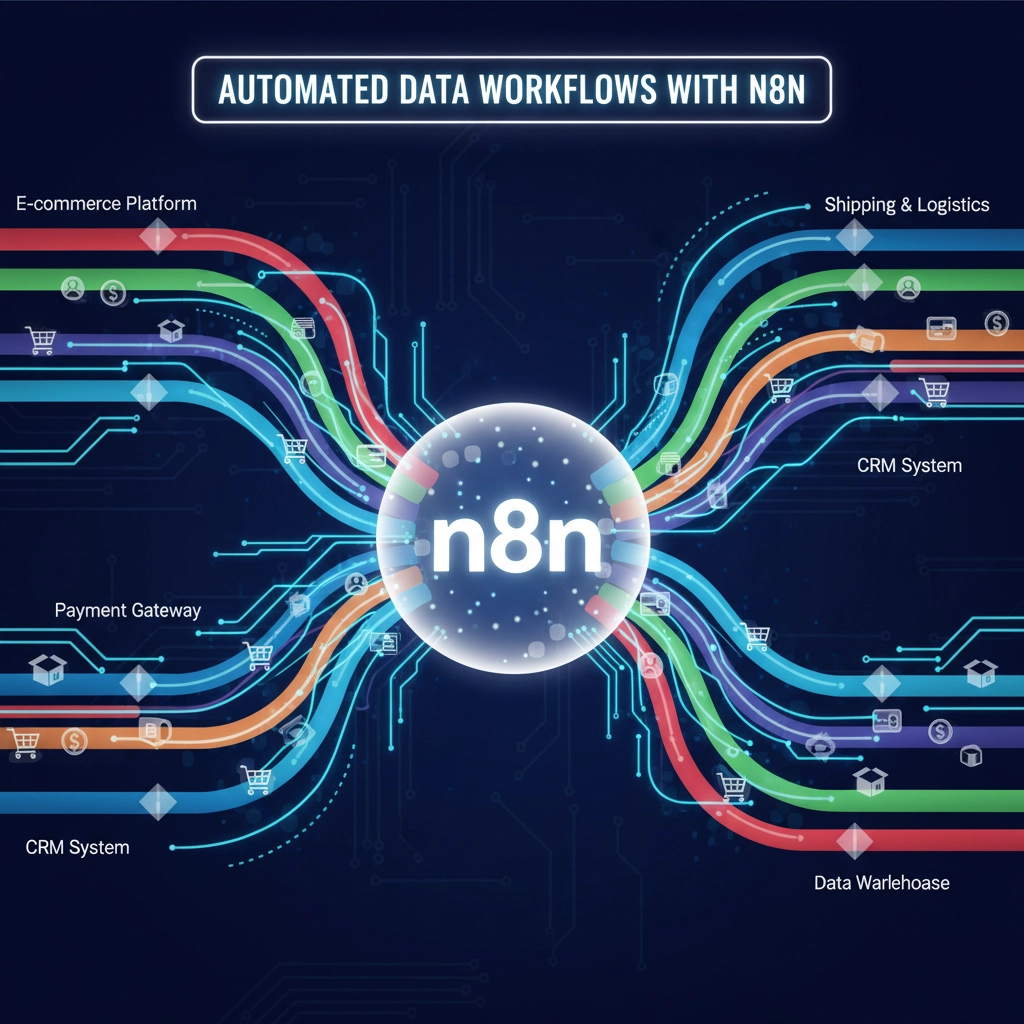
n8n automation eliminates these inefficiencies by connecting your e-commerce platform directly with your inventory management, CRM, shipping systems, and communication tools. Once configured, your order processing runs autonomously, reducing errors by 97% while freeing your team to focus on strategic initiatives.

Prerequisites and Platform Setup
Before building your automation workflow, ensure you have these essential components in place:
E-commerce Platform Access: You'll need administrative access to your store platform (Shopify, WooCommerce, BigCommerce, or Magento) with API credentials enabled. Most platforms provide webhook functionality that triggers n8n workflows automatically when orders are placed.
n8n Installation: Install n8n on your preferred hosting environment. Cloud-based installations on DigitalOcean or AWS provide better reliability and scalability than local installations for production workflows.
Integration Accounts: Prepare API keys for your email service provider (Mailgun, SendGrid), CRM system (HubSpot, Salesforce), and inventory management software. These connections enable seamless data flow throughout your automation.
Test Environment: Create a staging environment to test workflows before deploying to production. This prevents disruptions to live order processing while you refine your automation.
Step-by-Step Order Processing Workflow Creation
Step 1: Configure the Order Trigger
Start by creating a new workflow in n8n and add a webhook trigger node. Configure your e-commerce platform to send order data to this webhook URL whenever a new order is placed. The webhook should capture essential order information including customer details, product items, quantities, pricing, and shipping address.
For Shopify users, navigate to Settings > Notifications > Webhooks and create a new webhook pointing to your n8n URL. Set the event to "Order created" and format to JSON. WooCommerce users can install the WP Webhooks plugin and configure order triggers similarly.
Step 2: Extract and Validate Order Data
Add a "Set" node immediately after your webhook trigger to clean and structure the incoming order data. Extract key fields like order ID, customer email, billing address, shipping address, line items, and total amount. Include data validation to ensure required fields are present before proceeding.
Create conditional branches using "IF" nodes to handle different order types. For example, digital products might skip shipping processes while international orders require additional customs documentation.
Step 3: Inventory Management Integration
Connect to your inventory system using the appropriate API node. For each product in the order, subtract the ordered quantity from available stock. Configure automated reorder triggers when inventory levels fall below predetermined thresholds.
If using a separate inventory management system like TradeGecko or inFlow, use their respective API nodes. For basic inventory tracking, you can maintain stock levels in a Google Sheets document that n8n updates automatically.
Step 4: CRM and Customer Data Sync
Add nodes to update your CRM with new order information. Create or update customer records with purchase history, lifetime value calculations, and segmentation tags. This data powers future marketing campaigns and customer service interactions.
For HubSpot integration, use the HubSpot node to create deals, update contact properties, and assign pipeline stages. Salesforce users can leverage the Salesforce node to update opportunity records and account information.
Step 5: Payment Processing Verification
Include payment verification steps to confirm successful transaction processing. Connect with your payment gateway (Stripe, PayPal, Square) to verify payment status before proceeding with fulfillment activities.
Add error handling for failed payments or pending transactions. Failed payments should trigger customer notification workflows and prevent inventory allocation until payment is resolved.

Step 6: Automated Customer Communications
Configure email notifications for order confirmation, shipping updates, and delivery confirmation. Use template nodes to create branded email content that includes order details, tracking information, and relevant cross-sell recommendations.
Integrate with your email service provider using SMTP nodes or dedicated service nodes (Mailgun, SendGrid). Include customer segmentation logic to send personalized messages based on purchase history or customer tier.
Step 7: Fulfillment and Shipping Integration
Connect with your fulfillment center or shipping provider to automate label generation and tracking number creation. For drop-shipping arrangements, automatically forward order details to suppliers with required formatting.
Integrate with shipping carriers (UPS, FedEx, USPS) to generate shipping labels and obtain tracking numbers. Update your e-commerce platform with tracking information so customers receive automatic shipping notifications.
Advanced Automation Features
AI-Powered Fraud Detection
Implement OpenAI or similar AI services to analyze order patterns and flag potentially fraudulent transactions. Configure risk scoring based on factors like shipping address mismatches, unusual order quantities, or suspicious customer behavior patterns.
Dynamic Pricing and Promotions
Use n8n to implement dynamic pricing strategies based on inventory levels, competitor prices, or customer segments. Automatically apply promotional codes or loyalty discounts during order processing.
Multi-Channel Inventory Synchronization
Extend your workflow to manage inventory across multiple sales channels simultaneously. When inventory updates occur on one platform, n8n automatically synchronizes stock levels across all connected marketplaces and platforms.
Monitoring and Optimization
Performance Tracking
Implement logging and monitoring nodes to track workflow execution times, error rates, and processing volumes. Use webhook nodes to send performance data to analytics platforms for detailed reporting.
Error Handling and Recovery
Configure robust error handling throughout your workflow. Include retry logic for temporary API failures and notification systems for persistent errors requiring manual intervention.
Continuous Improvement
Regularly review workflow performance and identify optimization opportunities. A/B test different email templates, refine inventory threshold calculations, and adjust automation triggers based on business growth.
Troubleshooting Common Issues
API Rate Limiting: Implement delay nodes between API calls to respect rate limits. Use batch processing for high-volume operations to avoid overwhelming connected services.
Data Formatting Conflicts: Include data transformation nodes to ensure consistent formatting between different systems. Date formats, currency codes, and address structures often require standardization.
Webhook Reliability: Configure webhook retry mechanisms and implement backup polling methods for critical integrations. Monitor webhook delivery success rates and investigate failures promptly.
Measuring Automation Success
Track key metrics to quantify your automation's impact: order processing time reduction, error rate improvements, labor cost savings, and customer satisfaction scores. Most businesses see 75-80% reduction in manual order processing time within the first month of implementation.
Monitor customer metrics like order confirmation delivery times, shipping notification accuracy, and support ticket volume related to order status inquiries. Well-configured automation typically reduces order-related support requests by 60%.
Next Steps for E-commerce Automation
Once your basic order processing workflow is operational, consider expanding automation to other areas like abandoned cart recovery, customer segmentation, inventory forecasting, and supplier communications. Each additional automation compounds your efficiency gains and competitive advantages.
Ready to transform your e-commerce operations with powerful n8n automation? At Virtual Nexgen Solutions, our automation specialists help e-commerce businesses implement comprehensive workflow solutions that eliminate manual processes and accelerate growth. Our team has successfully deployed order processing automation for hundreds of online retailers, delivering average time savings of 25+ hours per week.
Book a free 30-minute consultation to discover how n8n automation can revolutionize your e-commerce operations: Schedule your automation strategy session
About Virtual Nexgen Solutions: We specialize in AI-powered virtual assistant services and business automation solutions. Our expert team helps companies streamline operations, reduce costs, and scale efficiently through custom automation workflows and intelligent virtual assistant integration. Visit virtualnexgen.com to learn more about our comprehensive automation services.